Quick Access
Loot filters are incredibly useful in Path of Exile 2, especially when items begin dropping in large quantities. They minimize on-screen clutter while emphasizing the most valuable loot, creating a smoother and more convenient looting experience.
Sorting and collecting items manually on console or with a controller can feel somewhat tedious. Fortunately, PlayStation and Xbox players can use item filters just like their PC counterparts. Setting up filters on consoles may seem a bit confusing, so here's a simple step-by-step guide to get them working.
How to Link Your Path of Exile 2 and Console Accounts
Currently, to use loot filters in the console versions of PoE 2, you must link your console accounts to your Path of Exile account. This can be done through the Path of Exile 1 website. Follow these steps:
- Log in to the Path of Exile website.
- Click your account name in the upper-left section of the page.
- Select "Manage Account" on the right, below your profile name and avatar.
- Under "Secondary Login," click the Connect button for either Sony (PlayStation) or Microsoft (Xbox).
Once you click the Connect button for your console, you will be asked to log in using your PlayStation or Xbox account. Complete the prompts, and your accounts will be successfully linked.
Finding and Using Loot Filters
After linking your accounts, return to your profile page on the website and click the Item Filters button on the right. Then, select the Item Filter Ladder link. This will open a new browser tab featuring popular loot filters for Path of Exile 2.
Above the list of filters, you’ll see a drop-down menu—change it to PoE 2. Choose the filter you'd like to use and click the Follow button on its page. For new Path of Exile 2 players, NeverSink's semi-strict or regular filters are recommended for a balanced and streamlined experience.
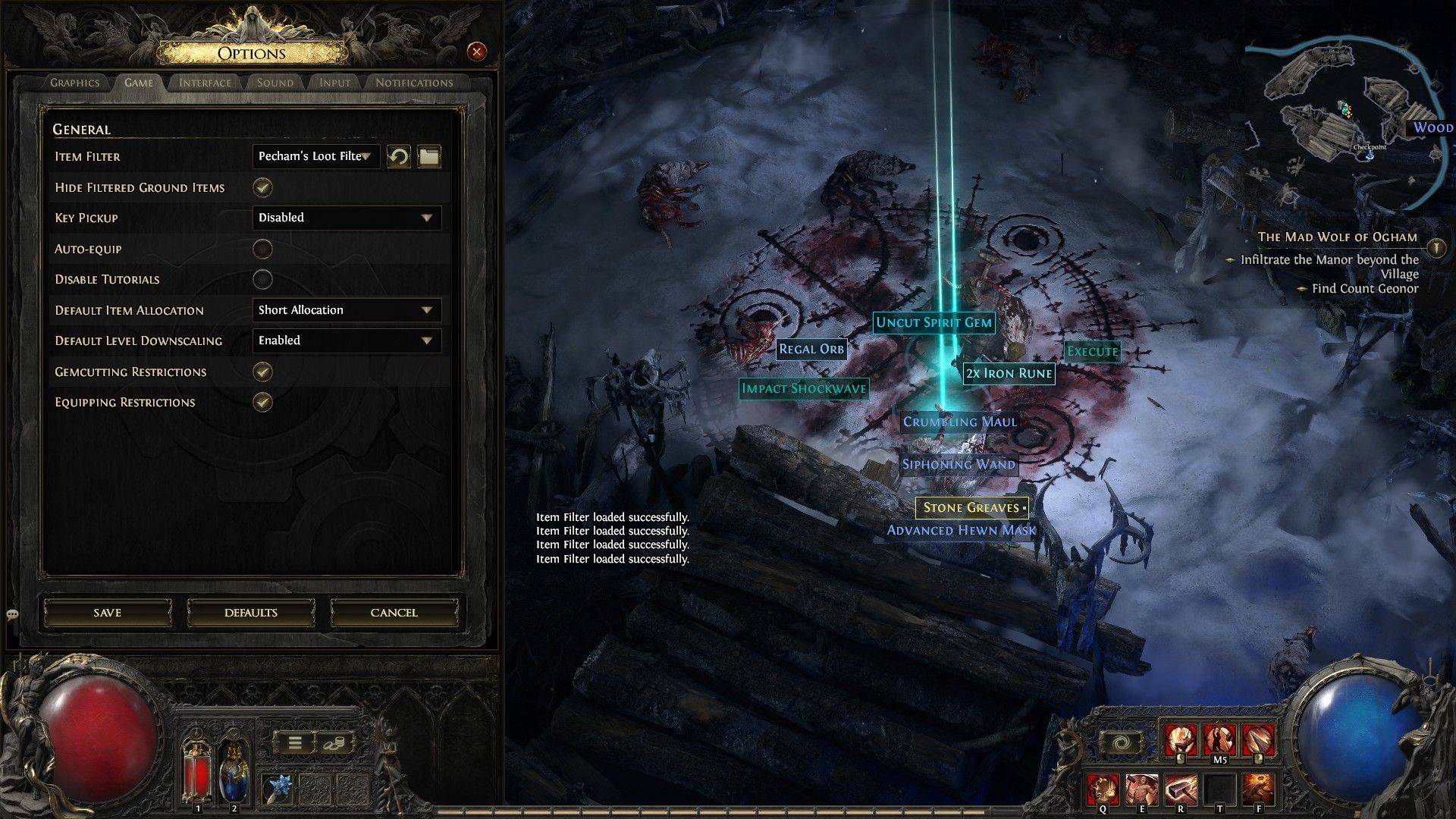
Now that you're following a loot filter on the official website, launch the game and navigate to the Options menu. Go to the Game tab, and at the very top you'll find the Item Filter option. Select the filter you followed from the drop-down menu, then click Save. From this point forward, items that drop in-game will display different labels, colors, or sound effects depending on the filter you activated.